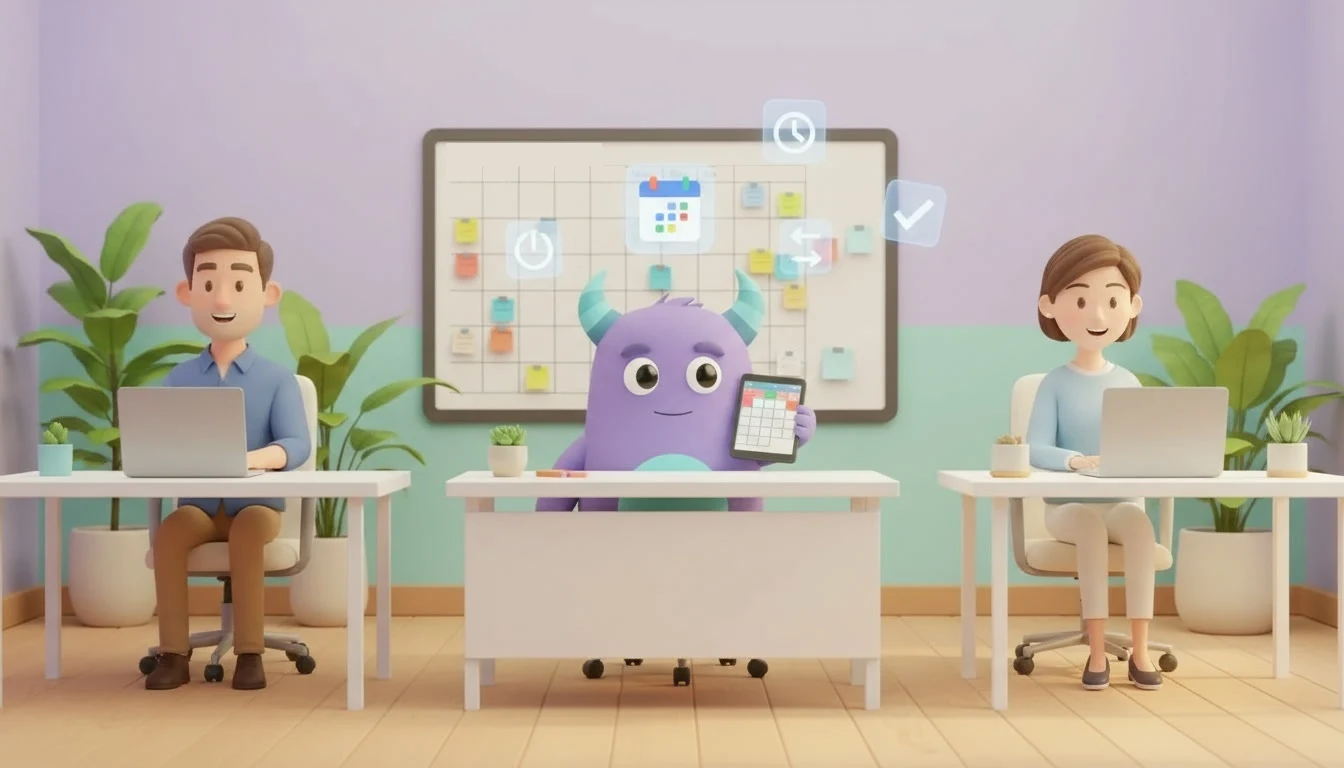

A Google Calendar CRM integration keeps the appointments in your CRM and the meetings in your team"s Google calendars in step, so nobody books a client into a time that is already taken. When customer meetings, consultations and visits are scheduled in one place and show up in the other, your team stops copying events by hand, stops arguing over whose calendar is right and stops apologizing for double bookings. This guide is for small business owners, sales teams and service teams who plan their day in Google Calendar and manage customers in Lua CRM.
Key takeaways
- A Google Calendar CRM integration connects CRM appointments with the Google calendars your team already uses.
- In Lua CRM, Google Calendar is listed in the Calendars category with two-way sync of appointments, including automatic updates and cancellations.
- The Calendars category is designed to keep schedules up to date and prevent double booking.
- Clean calendars, clear ownership and simple booking rules matter as much as the connection itself.
- Track double bookings, no-shows, appointment-to-deal conversion and follow-up completion after meetings.
What is a Google Calendar CRM integration?
A Google Calendar CRM integration is a connection between your customer relationship management system and Google Calendar that keeps appointments synchronized between the two. Appointments planned in the CRM appear in Google Calendar, and changes are reflected on both sides, so the schedule your team sees on their phone matches the appointments attached to customers, leads and deals in the CRM.
The goal is simple: one schedule, two views. Your team keeps using the calendar they know, while managers and colleagues see customer appointments in the CRM next to the rest of the relationship history.
Problems a Google Calendar CRM integration solves
Double bookings
When appointments are entered in the CRM by the front desk and in Google Calendar by the salesperson or specialist, the two schedules drift apart. Sooner or later, two customers are booked for the same slot.
Copying events by hand
Without a sync, someone has to retype every appointment from one tool into the other. It takes time, and every copy is a chance for a wrong date, time or name.
Changes and cancellations that never arrive
A customer moves a meeting by phone, and the change is saved in only one place. The specialist still travels to the old appointment, or the slot stays blocked after a cancellation.
Meetings without customer context
A meeting in a personal calendar does not tell the rest of the team who the customer is, what was discussed or which deal it belongs to. When appointments live in the CRM as well, the history stays with the customer.
Separate calendars versus Google Calendar connected to a CRM
| Area | Separate CRM and Google Calendar | Google Calendar synced with the CRM |
|---|---|---|
| Booking appointments | Entered twice, often by different people | Entered once and synchronized |
| Double bookings | Common when schedules drift apart | Schedules stay up to date to prevent double booking |
| Updates and cancellations | Saved in one place only | Automatic updates and cancellations in both directions |
| Customer context | Meetings without history in a personal calendar | Appointments visible in the CRM alongside the customer |
| Team visibility | Managers ask each person for their schedule | One shared view of customer appointments |
How Google Calendar works in Lua CRM
The Lua CRM integrations page lists Google Calendar in the Calendars category under 2-way Google Calendar sync. The Calendars category syncs appointments between Lua CRM and your calendar to keep schedules up to date and prevent double booking. For Google Calendar specifically, the page describes syncing appointments between Lua CRM and Google Calendar with automatic updates and cancellations.
Microsoft Outlook is listed in the same category with Outlook calendar sync, which keeps Outlook calendars and Lua CRM appointments synchronized to prevent double booking. Teams that work in both tools can connect the calendar each person actually uses. Email is handled separately: Gmail is listed under Mailboxes, and our Gmail CRM integration guide covers that side. To connect Google Calendar itself, follow the instructions shown for Google Calendar in Lua CRM or contact the Lua CRM team for help. If a tool you need is not listed, use the Request Integration option on the integrations page.
How to set up your Google Calendar CRM integration
The connection is only part of the work. Clean calendars and simple team agreements decide whether the sync actually helps. Work through these steps:
- List who meets customers. Write down every person whose customer appointments should appear in Lua CRM, such as salespeople, consultants, specialists or field staff, and which Google calendar each one uses.
- Decide what counts as a customer appointment. Consultations, demos, site visits and service appointments usually belong in the CRM. Internal meetings and personal events usually do not.
- Tidy up existing calendars. Remove old test events, fix recurring events that no longer happen and check that working hours are realistic before you connect.
- Agree where appointments are booked. Decide whether the front desk, the salesperson or the customer-facing specialist creates new appointments, and in which tool, so everyone follows the same habit.
- Connect Google Calendar. Follow the in-product instructions for Google Calendar in Lua CRM, or contact the Lua CRM team, so appointments are synchronized between Lua CRM and Google Calendar.
- Test with a sample appointment. Create a test appointment, change its time and then cancel it, and confirm that each change appears where you expect it on both sides.
- Set follow-up rules after meetings. Agree that every customer appointment ends with a note and a next step, such as a quote, a task or the next booking.
- Check results after two weeks. Look for appointments that were not synced as expected, duplicate events and meetings without notes, then fix the habit or the data.
Best practices for Google Calendar and CRM scheduling
Use clear appointment titles
Include the customer or company name and the purpose, such as "Demo: Green Leaf Bakery". Clear titles help colleagues understand a busy day at a glance.
Book from one place whenever possible
Two-way sync handles changes on both sides, but a single agreed booking habit reduces confusion about who scheduled what.
Keep personal and customer events apart
Use a separate calendar or clear labels for private events, so only the right appointments are shared with the team.
Close every meeting with a next step
An appointment is only valuable if something happens after it. Our guide to task management best practices for service teams shows how to turn meeting outcomes into owned tasks, and CRM automation explains how to reduce manual follow-up.
Illustrative example: a small consultancy that stops double booking
Imagine a three-person consultancy where the office manager booked client calls in the CRM while each consultant also accepted meetings directly in Google Calendar. Twice in one month, a client arrived for a call that clashed with another meeting. The team connected Google Calendar to the CRM, agreed that client appointments are booked by the office manager, separated personal events into private calendars and tested a booking, a change and a cancellation. After that, each consultant saw the same schedule on their phone that the office manager saw in the CRM, and every call ended with a note and a next step. This is a hypothetical example to show the workflow, not a measured case study.
Metrics to track
Double bookings
The number of appointment clashes per month. After the sync, this should move toward zero.
No-show rate
Appointments the customer missed without notice ÷ all scheduled customer appointments.
Appointment-to-deal conversion
First meetings or consultations that led to a deal, booking or sale ÷ all first meetings in the period.
Follow-up completion
Customer appointments with a recorded note and next step ÷ all completed customer appointments.