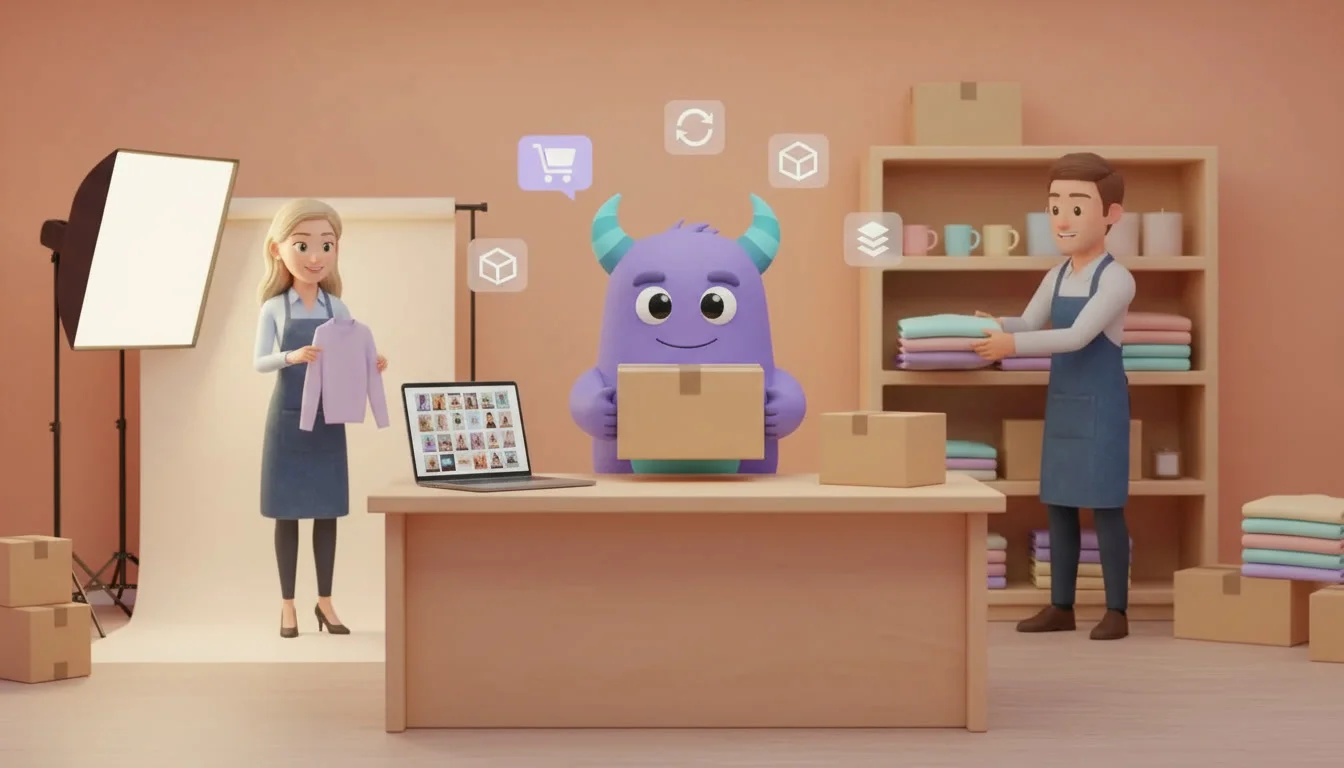

A WooCommerce CRM integration connects your online store with the system where you already manage products, customers and sales, so the catalog on your website does not have to be maintained by hand. Many shops start selling online with a WooCommerce store next to a physical shop, a showroom or a sales team. Soon the same product exists in two places: a new color is added in one system but not the other, stock on the website no longer matches the shelf and images or categories differ. This guide explains what the WooCommerce integration in Lua CRM does according to the Lua CRM integrations page, what WooCommerce itself offers for product data, how to prepare your catalog and how to roll the integration out without surprises.
Key takeaways
- The WooCommerce integration lets you push products, variations, stock, images and categories from Lua CRM to your WooCommerce store.
- The Lua CRM integrations page lists it in the Product Integrations category, which syncs your local item catalog with external commerce platforms.
- The direction described on the page is from Lua CRM to WooCommerce, so Lua CRM becomes the place where you maintain the catalog.
- Clean product names, variations and categories before the first sync, because the store will show what the CRM sends.
- Follow the instructions in Lua CRM or contact the Lua CRM team for setup details that the integrations page does not cover.
What is a WooCommerce CRM integration?
WooCommerce is described on its official WordPress.org plugin page as the open-source ecommerce platform for WordPress, with a free core platform. Businesses use it to run an online store on their own WordPress website. A CRM integration connects that store with your customer and sales software, so information you already keep in the CRM can appear in the store without retyping it.
The Lua CRM integrations page lists a Product Integrations category, described as a way to sync your local item catalog with external commerce platforms. The WooCommerce entry is titled sync products to your WooCommerce store, and its description says it pushes products, variations, stock, images and categories from Lua CRM to WooCommerce. The same category also lists ArmSoft Trade, a separate integration. The integrations page does not describe setup steps, sync frequency, field mapping or whether orders and customers flow back from WooCommerce, so treat the instructions inside Lua CRM and the Lua CRM team as the source for those details.
What the integration sends to your store
Based on the integrations page, five kinds of catalog data are pushed from Lua CRM to WooCommerce. The table below explains each one and why it matters for an online shop.
| Data pushed to WooCommerce | What it means in the store | Why it matters |
|---|---|---|
| Products | The items customers can browse and buy | New items appear online without being created twice |
| Variations | Options of one product, such as size or color | Customers choose the exact option they want |
| Stock | Available quantity shown to shoppers | Fewer orders for items that are no longer available |
| Images | Product photos on the store pages | The website shows the same pictures your team uses |
| Categories | How products are grouped and filtered | Shoppers find products in a familiar structure |
WooCommerce has its own rules for these objects. Its documentation on variable products explains that variations let a store offer different options on a product, with control over price, stock, image and more for each variation, such as a t-shirt in several sizes and colors. Its guide to product categories, tags and attributes explains how products are organized. Knowing these concepts helps you prepare data in Lua CRM that fits the store well.
Why sync your catalog from the CRM
One place to maintain products
When products are created and edited in Lua CRM and pushed to WooCommerce, the team works in one system. A new product, a new color or a new category does not need to be added again in the WordPress admin.
Stock that matches reality
Overselling is one of the most frustrating problems for small online shops. Pushing stock from Lua CRM helps the store reflect what your team sees, instead of numbers someone updated manually last week.
Consistent images and categories
Customers notice when the website and the shop tell different stories. Sending the same images and categories keeps the online catalog consistent with how your team sells in person.
Less admin work for the team
Copying product details between systems takes time and introduces errors. Removing that step frees staff for customer conversations and order handling.
Who benefits most
Businesses that sell physical products both online and offline benefit most: fashion and clothing stores with many sizes and colors, electronics stores with frequent stock changes, hardware stores with large catalogs, and any retail store that wants its website to match the shelf. Teams that sell through a sales pipeline and also run a small online shop gain a single product list for both.
How to prepare your catalog
The integration will publish what Lua CRM contains, so the quality of the store depends on the quality of the catalog in the CRM. Before the first sync, check the following:
- Product names. Use clear, customer-friendly names instead of internal codes.
- Variations. Decide which products have options such as size, color or material, and record each option consistently.
- Stock. Count and correct quantities so the first numbers pushed to the store are accurate.
- Images. Use good quality photos with a consistent style and remove outdated pictures.
- Categories. Build a simple category tree that shoppers understand, and avoid duplicates with slightly different names.
If your products currently live in spreadsheets, our Excel to CRM migration guide explains how to clean and import data.
How to connect the integration
The integrations page describes what the integration does but not the technical setup, so the steps below focus on preparation and on decisions you control.
- Check your WooCommerce store. Make sure the store is running and that you have administrator access to it. WooCommerce documentation on adding and managing products is a useful reference.
- Decide where the catalog is maintained. Because the page describes pushing data from Lua CRM to WooCommerce, agree that product changes are made in Lua CRM, not directly in the store.
- Clean the catalog in Lua CRM. Prepare products, variations, stock, images and categories as described above.
- Connect the store. Open the integrations area in Lua CRM and follow the WooCommerce instructions there, or contact the Lua CRM team for help with your store.
- Start with a small test. Sync a few products first and check them on the website: names, options, stock, photos and categories.
- Sync the full catalog. When the test looks right, push the rest and review the store page by page.
- Assign an owner. Make one person responsible for catalog changes and for checking the store after updates.
Fitting the store into your sales workflow
A synced catalog is one part of selling online. Customer questions about products often arrive by chat, and payments and receipts need their own process. If you send payment links for orders taken by phone or chat, the PayLink CRM integration covers that. Businesses in Armenia that must issue fiscal receipts can read about the Armenian Fiscal Device CRM integration. Ask the Lua CRM team how these integrations work together for your case rather than assuming they are linked automatically.
Common mistakes to avoid
- Editing products in two places. Changes made directly in WooCommerce may not match what Lua CRM sends next time.
- Syncing a messy catalog. Duplicates and unclear names become public on your website.
- Assuming orders come back automatically. The integrations page describes pushing catalog data to WooCommerce; confirm any order or customer flow with the Lua CRM team.
- Skipping the test. A small test sync prevents broken pages on a busy day.