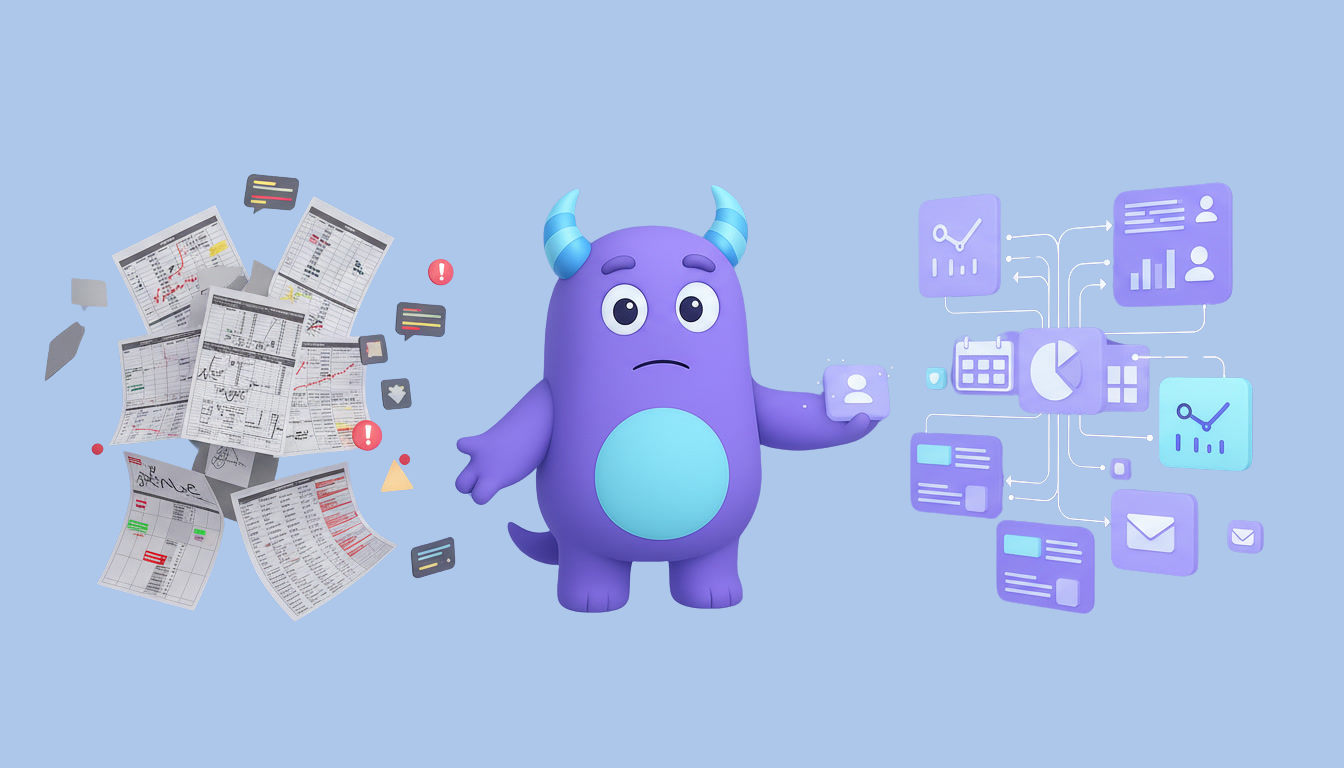

An ArmSoft Trade CRM integration connects the trade software your accountant and warehouse already use with the system where your team manages customers and sales, so products, stock, receipts and partners do not have to be typed twice. When the catalog, price lists and receipts live in ArmSoft Trade and sales happen elsewhere, prices drift apart, stock stops matching and the sales team cannot see what a customer bought. This guide explains what the ArmSoft Trade integration in Lua CRM does according to the Lua CRM integrations page and documentation, what each field and button means, how to prepare your data and how to roll the connection out safely.
Key takeaways
- The ArmSoft Trade integration sits in the Product Integrations category of Lua CRM, next to WooCommerce, and connects through the ArmSoft Trade REST API with your API key.
- It can import ArmSoft goods and services with groups, barcodes, VAT tax type, stock and prices, import cash-register receipts as sales and import partners as contacts.
- You need a Trade API key, a stock warehouse (one of your branches) and a price list code; an Accountant key is rejected.
- The card is free and is shown only to companies registered in Armenia.
- Run a test connection first, then sync products, contacts and documents in that order and check the results after each step.
What is an ArmSoft Trade CRM integration?
An ArmSoft Trade CRM integration is a connection between ArmSoft Trade, the trade and inventory software from the Armenian developer ArmSoft, and a CRM. Instead of exporting files and importing them by hand, the CRM reads data from ArmSoft through its API and creates or updates the matching records on its side. On the Lua CRM integrations page, the card is described as "Product catalog and sales from HC Trade" with the text "Connect the ArmSoft Trade REST API with your API key." The Product Integrations category itself is described as a way to sync your local item catalog with external commerce platforms.
What the integration brings into Lua CRM
The Lua CRM documentation for integrations describes three sync actions. The table below summarizes what each one needs and does.
| Action | What it needs | What it does | Batch size |
|---|---|---|---|
| Sync products | API key, stock warehouse, price list code | Imports ArmSoft goods as products and services as services; updates items already imported by External ID; brings groups, barcodes and a VAT tax type; sets stock at the chosen branch to the ArmSoft balance; writes prices from the price list to that branch's purchase and selling prices | Not stated |
| Sync documents | API key, stock warehouse, Documents from date | Imports ArmSoft cash-register receipts from that date through today as confirmed sales on the branch, in the company currency, with payment status paid, partial or unpaid; skips receipts already imported | Up to 40 receipts per click |
| Sync contacts | API key | Imports open ArmSoft partners as contacts, or links a partner to an existing contact when the name, phone or email matches | Up to 100 per click |
| Test Connection | API key | Checks the key and shows whether the connection worked or why it failed | Not applicable |
The documentation describes data coming from ArmSoft into Lua CRM. It does not describe sending data from Lua CRM back to ArmSoft, and it describes sync buttons rather than a scheduled automatic sync. If you need either, ask the Lua CRM team before you plan around it.
Why connect ArmSoft Trade to your CRM
One catalog for sales and accounting
When the sales team quotes from a different price list than the one accounting uses, every discount discussion becomes a reconciliation task. Importing products with prices from a chosen ArmSoft price list gives salespeople the same items, groups and barcodes the warehouse uses, and removes the retyping we describe in our article on the hidden cost of too many software tools.
Stock the team can trust
Product sync sets stock at the selected branch to ArmSoft's current balance. Salespeople can check availability before promising a delivery date.
Purchase history on the customer record
Receipts imported as sales, together with partners imported or linked as contacts, give your team a fuller picture of what customers buy. That history is the basis for follow-ups, reorder reminders and segmentation, as described in our guide to customer segmentation.
The connection dialog, field by field
In Lua CRM, the ArmSoft Trade card shows as Available until an API key is saved and as Connected afterwards. Clicking Connect opens the dialog "Add Integration - Products • ArmSoft Trade". A note in the dialog explains that the key is sent as the apiKey header to the ArmSoft Trade API, that you should use a Trade key and that an Accountant key returns an error (401).
- API key (required): your ArmSoft Trade API key, entered in a password field.
- Stock warehouse (required): one of your Lua CRM branches. Product sync writes stock to this branch, and document sync records sales on it.
- Price list code (required): the ArmSoft price list that product sync reads.
- Documents from (optional to save): a date in DD/MM/YYYY format. Document sync starts on this date and runs through today.
The sync buttons use the values typed in the dialog, even unsaved ones, and there is no disconnect button, so check the branch and price list before the first sync.
How product codes and SKUs are handled
A product imported for the first time receives the next catalog SKU in Lua CRM, in the same numbered style as other catalog items, such as 000123. An existing item that already has an all-digit SKU keeps it. An existing item with any other SKU receives a new one on the next sync. The ArmSoft id is kept in the External ID field, which is how later syncs recognize items that were already imported.
If your team searches by SKU, review non-numeric codes before the first sync.
How to prepare before connecting
- Confirm eligibility and access. The card is shown only when the company is registered in Armenia, the same rule as the Armenian Fiscal Device card. The user who connects it needs the integrations permission in Lua CRM.
- Get the right key. Ask your ArmSoft administrator for a Trade API key, not an Accountant key.
- Choose the branch. Decide which Lua CRM branch should hold the imported stock and sales. If you have several locations, agree on this with accounting first.
- Pick the price list. Find the code of the ArmSoft price list that should become the purchase and selling prices for that branch.
- Clean partners. Because contacts are linked by matching name, phone or email, fix obvious duplicates and outdated phone numbers on both sides. Our Excel to CRM migration guide explains a simple cleanup routine.
- Choose a start date for receipts. A recent date keeps the first document sync small and easy to check.
How to connect and run the first sync
- Open Settings, then Integrations, and find ArmSoft Trade in Product Integrations.
- Click Connect, enter the API key, select the stock warehouse and type the price list code.
- Click Test Connection and read the notice. If it fails, check that the key is a Trade key.
- Click Save to store the key, warehouse and price list code.
- Click Sync products. Open the catalog and check a few goods and services: names, groups, barcodes, VAT type, stock at the branch and prices.
- Click Sync contacts. The notice reports how many contacts were created, how many were linked and how many remain. Click again until none remain.
- Enter a Documents from date and click Sync documents. Each click imports up to 40 receipts, and the notice shows how many remain, so repeat until none are left.
- Compare a few imported sales with the original receipts in ArmSoft before you rely on the data in reports.
Fitting ArmSoft data into your sales workflow
Once products and receipts are in Lua CRM, the CRM can support work that ArmSoft is not built for. Salespeople can see which items a customer buys and when, set follow-up tasks before a typical reorder date and spot customers whose purchases have slowed down. Scoring recency, frequency and spend, as in RFM analysis, works well on imported sales.
The integration also fits next to other Lua CRM connections. If you sell online, the WooCommerce CRM integration pushes products, variations, stock, images and categories from Lua CRM to your store. If you print fiscal receipts from Lua CRM sales, read about the Armenian fiscal device CRM integration. For systems without a ready-made card, the CRM API integration guide covers the LuaCRM API.
Common mistakes to avoid
- Using an Accountant key. The connection requires a Trade key; an Accountant key returns an error.
- Choosing the wrong branch. Stock and imported sales land on the selected branch, and there is no disconnect button, so double-check it.
- Starting receipts too far back. At 40 receipts per click, start recent and extend later.
- Skipping partner cleanup. Duplicate or outdated partner data leads to duplicate contacts or wrong links.
- Assuming two-way sync. The documentation describes imports into Lua CRM. Do not expect changes made in Lua CRM to appear in ArmSoft unless the Lua CRM team confirms it.